Recording a payment against an invoice
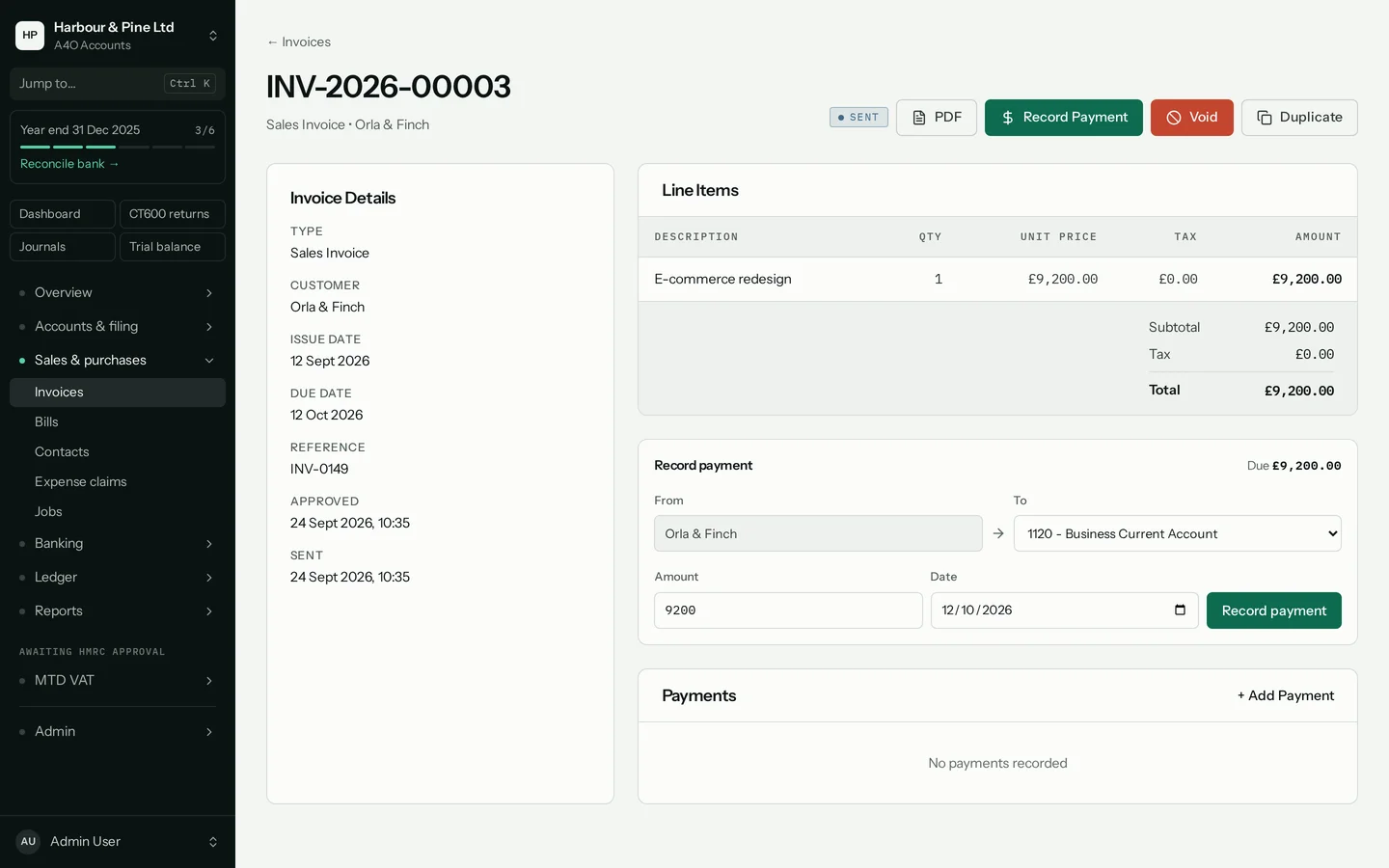
When a customer pays, you don’t need a separate screen. Every approved invoice has a Record payment box: money goes from the customer to your bank account, for the amount due. Bills work the same way, from your bank to the supplier.
- The invoice must be approved. A draft shows Approve instead of the payment box.
- You need a bank or cash account in your chart of accounts. The To box lists them, bank accounts first.
From the invoice list
- Go to Sales & purchases → Invoices and click the invoice.
- If it’s still a draft, click Approve in the panel. The payment box appears under it.
- Check From (the customer) and To (the account the money went into).
- The Amount is the amount due. Change it for a part payment. Set the Date the money arrived.
- Click Record payment. The invoice shows Paid, or Partial if some is still due.
The same box is on the invoice’s own page, above Payments.
When it’s already paid as you write it
For a sale paid at the counter, or a bill you’ve already paid, you can do it all on the form.
- Fill in the invoice as usual.
- Tick Already paid. For a bill it reads Already paid to the supplier.
- Check the account, the Amount paid (the total, including VAT) and the Payment date.
- Click Save, approve & pay. The invoice is saved, approved and paid in one go.
Bills
A bill’s box runs the other way: From is your bank or cash account, and To is the supplier. Find bills under Sales & purchases → Bills.
If you got it wrong
Under Payments on the invoice’s page, click Void next to the payment. The amount goes back to being due, and you can record it again.
You can’t record more than the amount due. If a customer overpaid, record the amount due and deal with the rest separately.