Setting up your HMRC details for Corporation Tax
There’s no separate “connect to HMRC” step for Corporation Tax. You save your company’s UTR once, then enter your Government Gateway user ID and password each time you file a live return. A4O Accounts doesn’t store them.
- Your company’s Unique Taxpayer Reference (UTR): 10 digits, on letters from HMRC about Corporation Tax.
- The Government Gateway user ID and password you use for Corporation Tax online. You only need these when you file for real.
1. Save your UTR on the company
- Go to Overview → Companies, then open your company.
- In the UK Filing - HMRC card, enter your Unique Taxpayer Reference (UTR). Add the Corporation Tax Reference too if you have it.
- Click Save Changes.
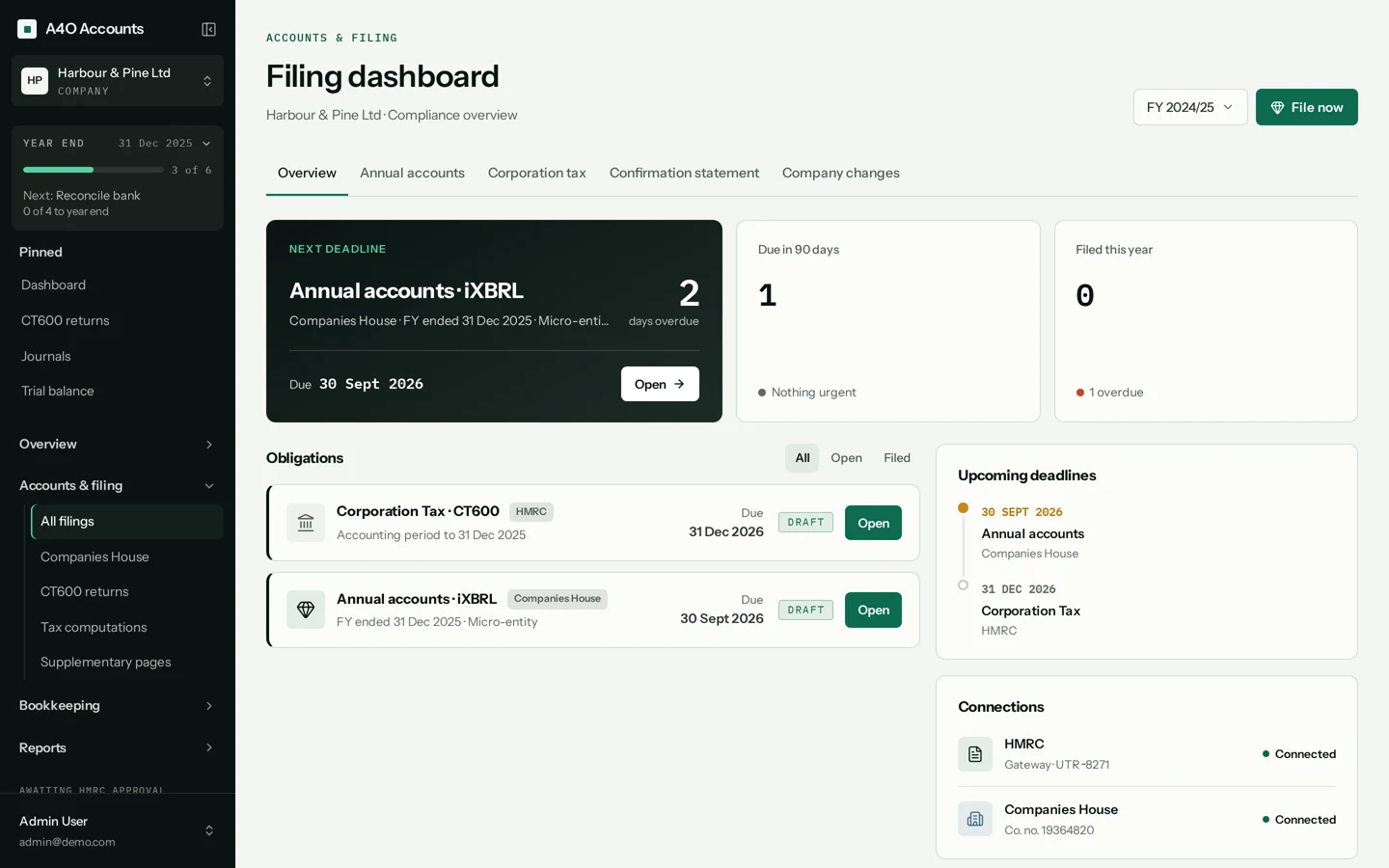
Once the UTR is saved, the Connections card on the filing dashboard (Accounts & filing → All filings) shows HMRC as Connected. That badge means the details are in place. It doesn’t mean you’re signed in to HMRC.
2. Enter your Gateway details when you file
When you submit a CT600, the Submit to HMRC dialog opens with Test Mode ticked. A test submission goes to HMRC’s test service and files nothing.
To file for real, untick Test Mode. A Government Gateway credentials panel appears. Enter your Sender ID (your Government Gateway user ID) and Password. They’re used for that submission only and are not saved. The submit button stays greyed out until both are filled in.
VAT and Income Tax. Making Tax Digital for VAT and Income Tax uses a different sign-in to HMRC. Those features are built and waiting for HMRC sign-off. Until then they can only send test submissions, and they’re marked “Awaiting HMRC approval” in the app.